5fifi flow is a small, independent app, so installing it takes a few more clicks than something from the Mac app store. this guide walks you through every step. it only needs to be done once.
before you start
- you need macOS 14 (sonoma) or later.
- 5fifi flow runs on both Apple Silicon (m-series) and Intel Macs. download the version that matches your Mac. if you are not sure, click the Apple menu in the top-left corner and choose about this Mac: it will say either “Apple m…” or “Intel”.
1. download and unzip
- on the 5fifi flow download page, choose the version for your Mac (Apple Silicon or Intel). your browser saves a
.zipfile, usually to your downloads folder. - open the
.zip. some browsers unzip it for you automatically; if not, double-click it. you get a folder with two items inside: the 5fifi flow disk image (a.dmgfile), and a short welcome note that links back to this guide.
2. open the disk image
double-click the .dmg file. a window opens showing the 5fifi flow app icon next to a shortcut to your applications folder.
3. move 5fifi flow to applications
drag the 5fifi flow icon onto the applications shortcut in the same window. this copies the app into your applications folder.
when it finishes, you can close the window and eject the disk image (drag it to the trash, or click the eject arrow next to it in a finder sidebar).
4. open the app for the first time
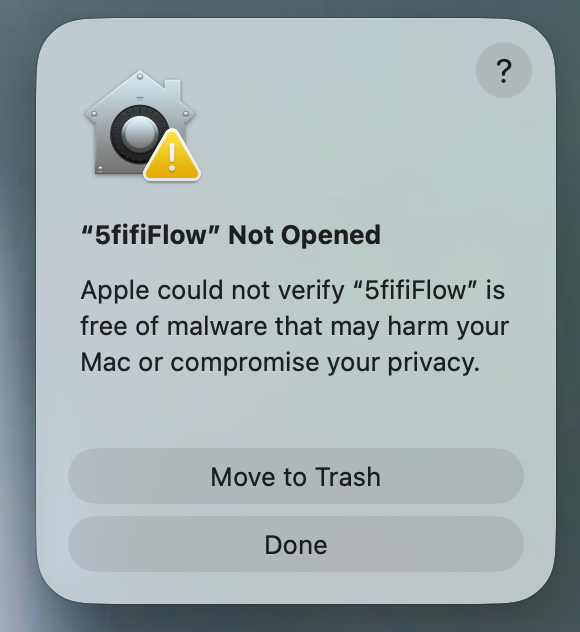
open your applications folder and double-click 5fifi flow. because the app is from an independent developer and is not notarized by Apple yet, macOS blocks it the first time and shows a message saying it “cannot be checked for malicious software” or that Apple “could not verify” it. this is expected. here is how to open it safely.
the reliable way (works on every current macOS)
- when the warning appears, click done (or cancel). do not click “move to trash”.
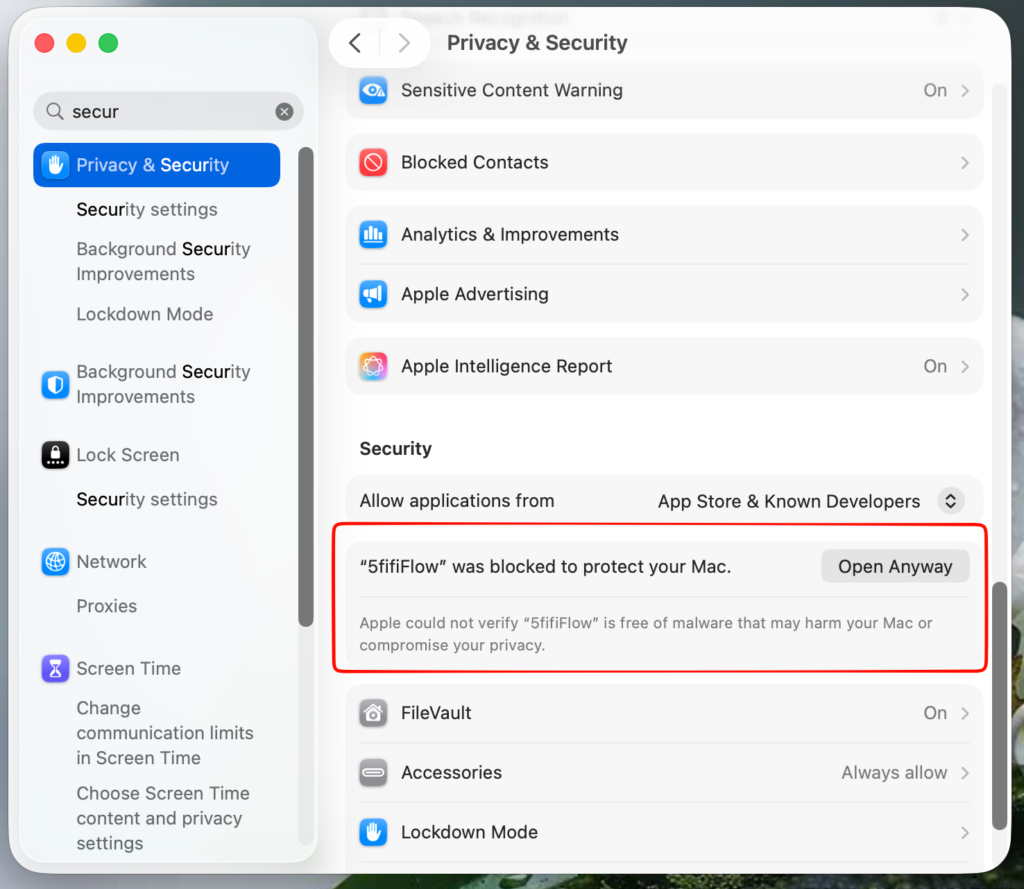
- open System Settings from the Apple menu.
- go to privacy & security and scroll down to the security section.
- you will see a line that mentions 5fifi flow was blocked. click Open Anyway.
- confirm with touch id or your Mac password.
- if one more confirmation dialog appears, click open.
5fifi flow now opens, and macOS will not ask again.
a quicker way (macOS sonoma and earlier only)
in your applications folder, right-click (or control-click) the 5fifi flow icon, choose open, then click open in the dialog. on newer macOS this shortcut no longer works for apps like this one, so use the System Settings method above instead.
5. allow accessibility access
5fifi flow needs accessibility permission so it can hear key presses and mouse clicks anywhere on your Mac and play a sound for each one. it only detects that a key or click happened, never which keys you press. nothing you type is recorded, stored, or sent anywhere.
- on first launch, 5fifi flow shows a short explanation and can open the right settings page for you.
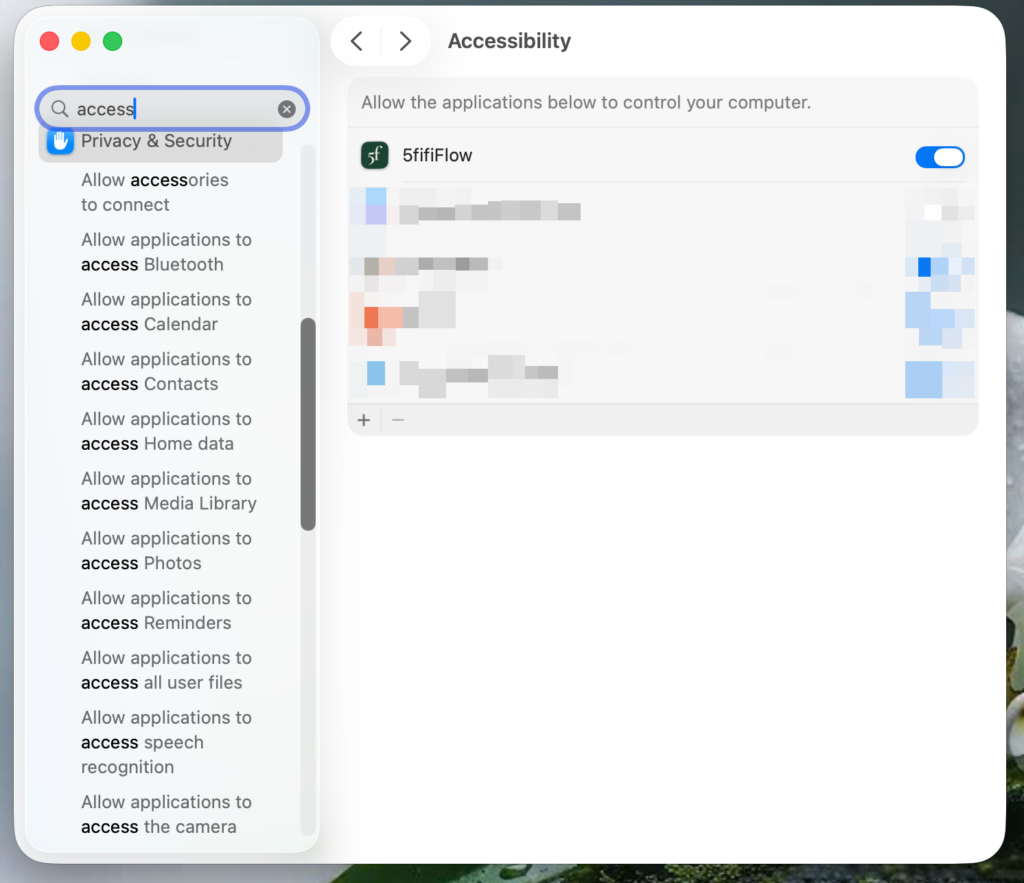
- go to System Settings → privacy & security → accessibility.
- find 5fifi flow in the list and turn its switch on. if it is not in the list, click the + button, choose 5fifi flow from your applications folder, and add it.
- if macOS asks you to quit and reopen the app, do that.
once accessibility is on, sounds start playing right away. no restart is needed.
6. allow input monitoring (only if macOS asks)
on some versions of macOS you may also be prompted for input monitoring. if that happens, go to System Settings → privacy & security → input monitoring and turn 5fifi flow on the same way.
you are all set
look for the small 5fifi flow icon in your menu bar, near the clock. click it to open the quick menu, where you can mute or unmute sounds, adjust the volume, see the current sound pack, and open settings to choose a different keyboard or mouse sound.
by default, 5fifi flow also starts automatically when you log in. you can change that in System Settings → general → login items.
if something is not working
5fifi flow usually just works, but if something feels off, here are a few things to try. and if none of them help, please reach out. I read every message and I am always glad to help.
- no sound after a recent update? macOS sometimes forgets that it trusted 5fifi flow when a new version arrives. open System Settings → privacy & security → accessibility, switch 5fifi flow off and back on (or remove it and add it again), then quit the app fully and reopen it. the sound should come right back.
- cannot spot the menu bar icon? open 5fifi flow again from your applications folder. if your menu bar is crowded, macOS may be tucking a few icons away, and making a little more room usually brings it back.
- macOS says the app is “damaged”, or it still will not open? the download most likely got cut short. delete the file, download it again, let it finish completely, then unzip and try once more.
- would you like a walkthrough in your own words? you can paste this page into ChatGPT, Claude, Gemini, or Copilot and ask it to guide you gently, step by step.
- still stuck? you can use report bug right inside the app, or find more on the help and contact pages here. every message reaches me, and I would love to help.
read this in your language
would you rather read in your own language? open the language menu in the page header or footer and pick Tiếng Việt, 한국어, 日本語, 繁體中文, Español, or עברית.
wishing you a happy and peaceful day ahead.
— from 5fifi flow founder